Here is how to quickly and easily set up your Gmail calendar to show you airbnb calendar, and make life a little easier. The reason for needing the second calendar is that we like to ‘take note’ if we have had enquires but the potential guest has not booked yet although it seems likely they will. The airbnb calendar does not show enquires, only confirmed bookings and pending reservation requests to be accepted.
Firstly log into your airbnb account and then click on your listing and then the calendar for your listing you require the calendar.
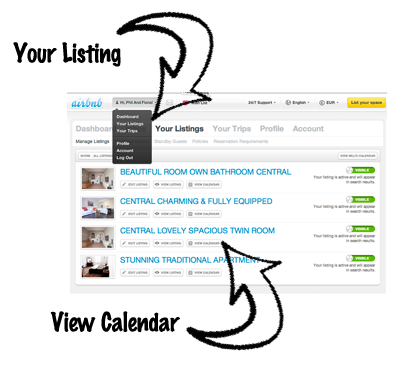
You will then find the URL link required for the Google iCal Calendar at the bottom of the page. You need to highlight and copy this link.

Then it is over to your Gmail account. Log in and go to your calendar and you will see on the left hand side there is another calendar tap, click this and you will see ‘add buy URL’. Just paste the URL in from the airbnb calendar page and your nearly done.
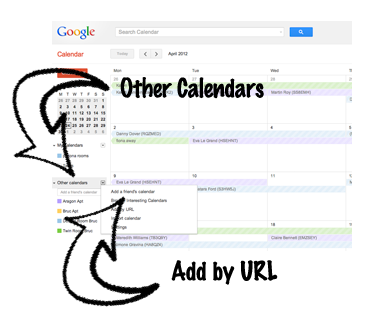
The last thing to do is to rename the calendar.
It’s very easy, just hit the drop down box next to your new calendar and click on calendar settings, there you can rename it to something more pleasing to the eye than http://www.airbnb.com/calendar/ical/186096.ics?s=fsdfbsdkjcc14bc18f28c0068af635227c21. Just press save and your airbnb calendar is now part of your google calendar.
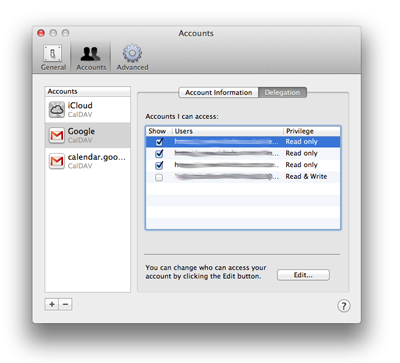
If you are using a Mac and iCal then when logged onto your iCal application you must go to preferences, then accounts and select delegation. Tick the calendars(s)you have added, and they will then appear in you iCal and sync with your other devices you have set up.
A note on icalculator format: It is available on a host of other calendars and calendar sharing platforms, but we use Google Calendar, so that is why I have only talked about this one.
Let us know if there is anything we can help with.
Thanks,
Phil
'Linking Airbnb and Gmail Calendars' have 22 comments
May 24, 2015 @ 8:37 pm Chris
Great, thanks!
July 10, 2015 @ 1:34 am Tee Taylor
Thanks! That is soooo helpful!
July 28, 2015 @ 9:23 am Phil
Hi Tee,
No worries. Great to here we helped you out.
Phil
July 10, 2015 @ 1:55 pm Laura
Thank you for your extremely slick guide to calendar synching….all other published processes were unnecessarily complicated and didn’t identify the simple pasting ”URL” method…Regards
Laura
July 28, 2015 @ 9:22 am Phil
Hi Laura,
You are welcome and thanks for your comment. Its always great to hear folks are still using some posts we wrote a while back.
Cheers,
Phil
September 17, 2015 @ 3:24 pm Mike
This is a one way sync, right? From AirBnB to Google. Is it possible to do a two way sync?
January 2, 2016 @ 11:09 am Phil
Hi Mike, Thanks for the message. Yep, a 2 way sych is possible. But we use http://www.VReasy.com. Not only for synching, but also for automating emails.
October 27, 2015 @ 9:25 am Alex
thank you so much – excellent instructions 🙂
January 2, 2016 @ 11:07 am Phil
You more then welcome Alex.
December 4, 2015 @ 7:44 pm Robby
Great, easy, thx! Does this automatically sync when I get new bookings on AIrbnb?
-Robby
January 2, 2016 @ 11:03 am Phil
Hi Robby, yep once you have set up. It’ll link in with new bookings from Airbnb. You should also check out http://www.VReasy.com for some automated emails. It’s been a life saver for us.
June 7, 2017 @ 1:21 am Monica
I’m interested to know more about this step. I’ve synced both my listings calendar in google calendar and at first all looked perfect. Just a few minutes after I got a new reservation at Airbnb and surprise of all surprises: it does not sync to gcalendar. What should I do? Thank you for your help
January 15, 2016 @ 9:37 am Anton
Hi,
Great site, I’m an Airbnb host myself from the Philippines.
I was wondering if you had any tips to enable 2 way syncing, ie. if someone books via Airbnb the dates automatically get blocked off in my google calendar and also if I block off dates in the google calendar then these dates will automatically be blocked off in Airbnb as well.
Mike (Sept 17, 2015) asked this question as well. While I’m open to using a third party manager like vreasy.com, I’d much rather have a solution which I can do on my own.
Thanks!
February 1, 2016 @ 8:00 pm jean
Thank you so much !
June 13, 2016 @ 5:39 am Michael
Thanks! The reason I wanted to get the airbnb calendar into Google is so that I could then share the calendar with my cleaners. It appears that google does not allow the “other calendars” to be shared with other google users. Any thoughts on how to share the airbnb calendar with my cleaners without giving them access to my airbnb account?
Thank you!
June 21, 2016 @ 7:42 pm Gloria Archuleta
I can’t find the account preferences for Mac – cant find anything that looks like your screenshot. Can you please get remedial and explain exactly where I find that.
July 21, 2016 @ 5:28 pm David Baker
Really great advice. Thanks for making explaining it so well.
October 24, 2016 @ 7:33 pm Suzie
Hello! I am so happy to have found your website. I am a hostess from Greece and I would like to thank you for making it so simple for me to understand! What I was curious about is if by importing a calendar you can also automatically somehow update it. So basically I do not have to go and copy the link every single time. Many thanks!
October 31, 2016 @ 8:32 pm Natalie
What if you don’t have a Mac, but you want your Google Calendar listings to sync to your iPhone? How can I delegate via the iPhone? Is there a way? I’m finding that my “other calendars” in google calendar do NOT sync with my phone.
January 18, 2017 @ 2:57 pm Pierre Charreyron
Hello,
Thanks for this tutorial. In fact I have figured it out by myself before. Today, I am trying to go one step further. I have developed my own website for my vacation rental, and I am trying to embed a calendar to show potential guest if the rental is available or not. I have figured out how to embed a Google calendar in a web page. I want the embedded calendar to show 2 calendars:
– my own Google calendar for all bookings that do not come from Airbnb
– the airBnB calendar.
The problem is that Google does not let me share-out a calendar which imported and synchronised form AirBnB. Did you have the same problem and do you have any ideas on how to solve it? I was thinking to create a new Google calendar replicating the Airbnb calendar and then sharing this new calendar, But I do to know how to do this.
Thanks in advance,
Pierre
February 1, 2017 @ 3:10 am Joe
yeah riddle me this though. I have 10 units on airbnb….
I can of course import the AirBnB calendar for each of the 10 units into its own Google calendar….did that…done that….now I have 10 calendars in my Google Calendar showing the AirBnB bookings for each of the units.
But its one-way syncing….the calendars created in Google can’t be edited…they are static reflections of the AirBnB calendar.
To have the ability to add and show bookings for each of the units made outside of AirBnB….I need to create a 2nd Google Calendar for each of the 10 units that I can edit and add reservations to I make on my own or through other sources.
So I now have 20 Google Calendars for my units and to see availability for any specific unit I need to look at the AirBnB import AND my secondary Google calendar for the same unit showing my own bookings….
That sucks…any idea for a work around?
February 20, 2018 @ 3:25 am james
How can I remove my shared Google calendar from AirBnB? I accidentally shared a private calendar.